 Adios
AdiosSetting it up
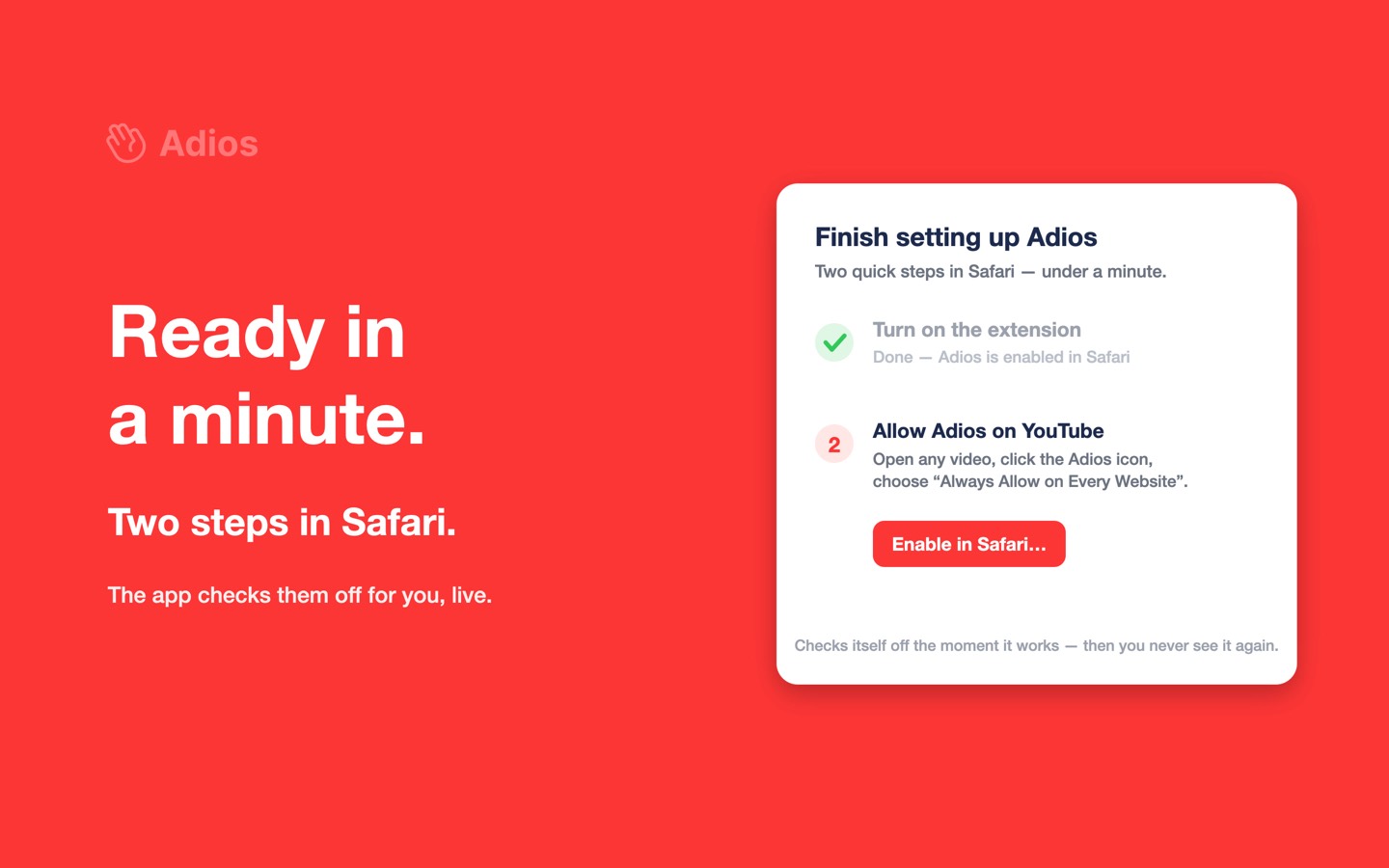
Three steps, about a minute. The app shows the same checklist and ticks each one off by itself.
You'll need
- A Mac running macOS 13 Ventura or later.
- Safari. Adios is a Safari extension — it can't run in Chrome, Firefox, Edge, Brave or Arc.
- Nothing else. No account, no email, no card.
1. Install it
Free from the Mac App Store. Installing the app installs the extension with it.
The app itself is just a setup window — you don't need to keep it open. It exists to walk you through the two Safari permissions below and to show your video count.
Free · under 1 MB · macOS 13 or later
2. Turn on the extension
Safari → Settings (⌘,) → Extensions, then tick the box next to Adios. It's in the left-hand list as “Adios — Bye YouTube Ads”.
3. Allow it on YouTube
Open any video, click the Adios icon beside Safari's address bar, and choose “Always Allow on Every Website”.
Safari asks this for every extension, which is a good thing — it means nothing can read a page you haven't approved. Adios only ever acts on youtube.com; the broad wording is Safari's, and “Always Allow on youtube.com” works just as well if you prefer the narrower version. Avoid “Allow for One Day” unless you enjoy doing this again tomorrow.
4. Pick Auto
Click the Adios icon in Safari's toolbar and you get one switch:
- Auto — every video, handled automatically. This is what almost everyone wants.
- Manual — YouTube behaves normally until you click “Remove ads for this video”.
The same popup shows how many free videos you've used this month and when the count resets.
Checking it worked
Open something that would normally show an ad first. With Adios running, the player area goes black for a moment and then the video starts — no ad. The page around it still looks like YouTube, because only the player changed.
Nothing happening? The FAQ lists every cause in the order worth checking, starting with the two that account for almost every report.
Removing it
Drag the app to the Trash. The extension lives inside it, so it goes too — nothing left behind, no uninstaller. To switch it off without deleting anything, untick it in Safari → Settings → Extensions.
If you bought the lifetime unlock, it stays on your Apple Account. Reinstalling later costs nothing — press “Restore Purchase”.
Last updated: 2026-09-17 · Adios 1.3